Showing posts with label dvbse. Show all posts

Sunday, 5 February 2017

DVB TS Monitor ECM stream list.

ECM

DVB TS Monitor in latest DVBStreamExplorer (v4.0.25) now includes a list of all ECM streams found in TS.

This has been added as a convenience to have all ECM streams in TS listed in one place. Each ECM stream item includes basic information such as CA_system_ID and PID. It also includes information about which program(s) referenced the ECM stream.
Without this list one would have to walk through each service and its elementary streams to get information about ECM stream usage.

Set tuner from DVB TS Monitor

Another new feature is the option to set tuner directly from TS Monitor. No more switching back to main window, set tuner and then open TS Monitor again.
Even better, for certain relevant tree items in TS Monitor it's now possible to right-click on item to show a popup menu from where tuner dialog can be opened. Tuner dialog will be preset with parameters relevant in the context of selected item.
This should make it more convenient to quickly switch to a TS of interest. 
Currently context menu can be activated from following tree items:
  • Other MUX Services items.
  • Other MUX Network items.
  • EIT service items under Present/Following and Schedule.
Note that for all tuner operations TS Monitor scanning must be in stopped state.

Sunday, 21 August 2016

DVBStreamExplorer Community Preview

A DVBStreamExplorer Community Preview including Python integration has been made public available. This is in a very early stage but will allow you to try out Python integration feature now.

At this point only x64 is available. You need a valid DVBStreamExplorer license or you can try it out for time limited period. You also need to have Python 3 x64 version installed.
Download from here: http://dvbstreamexplorer.com/grIyM6Xq/dvbse/4.0/preview/python/dvbstreamexplorer4ProX64.msi

This version is almost identical to the recent DVBSE 4.0.21 except for the Python integration.
To integrate Python launch DVBStreamExplorer. Open options / preferences. You should notice a new tab 'Python integration'.


Here you can enable Python integration. You can open the the folder where user Python scripts should be stored. The folder path is fixed and cannot be changed.

Currently only Multiple DVB MUX scanning (S/C/T) integrates Python.

Download following script and use it as a starting point, https://drive.google.com/file/d/0B2ETNJgnsmi0NjktRGdSamItZWM/view?usp=sharing. This basically just defines simple stubs for the methods that will be invoked by DVBStreamExplorer.
The print statements do not have any effect when invoked from DVBStreamExplorer since these is no active console for output. They were used when invoking script from a small Python test application. Each method increments a member variable, This is just to demonstrate that state is kept in between calls.
Now you can modify the sample script for your own need. The general rule is if you want DVBStreamExplorer to continue it's current task return 0. If you want DVBStreamExplorer to abort it's current task return 1. In the sample script this is demonstrated for DVB-S scanning that will skip scanning for vertical transponders.

This is work in progress and likely to change before final release. It is strongly recommended not to make any custom solution for production usage. Things can break in furure preview and final releases.

Feel free to provide feedback, either as comment to post or directly to info@dvbstreamexplorer.com

Saturday, 23 April 2016

Showing EIT information in DVBStreamExplorer Service View

DVBStreamExplorer V.4.0.20 includes a new feature that will allow EIT information to be continuously saved  to XML files from TS Monitor (DVB). DVBStreamExplorer Service View has been updated so it can now load and display such files. Below is screenshot after loading EIT XML file. Note how service names are initially displayed as triplet of ONID/TSID/SID.


To show real service names, load a DVBStreamExplorer service XML export that contains the necessary information. Below is screenshot after loading such file.


Note that the service tree items are ordered by the underlying ONID/TSID/SID values. This should preferably be changed to order by service names.

Friday, 15 April 2016

How section binary view in DVBStreamExplorer helped locating a bug

A little known feature in DVBStreamExplorer is the ability to view raw section content in main window. This feature recently helped me out locating a bug in DVBStreamExplorer.
Some time time ago I had done some DVB-S scanning of several satellites. SI and SVC XML files had been saved. Recently I tried to open SVC XML file in DVBStreamExplorer Service View which I was running from Visual Studio. I got this error during load.


I opened SVC XML file in wxHexEditor. I was able to locate the 0x07 character.


The problem was related to a service name. I was able to figure which service had the problem. I loaded the SI XML file in DVBStreamExplorer and navigated to that service and got this view.


There appears to be some kind of control character before service name. That's suspicious since control characters are supposed to be filtered out before being displayed. To view raw section content select section on tree view. And select 'value' tab in bottom view.
The first byte in highlighted area is 15 which is hexadecimal for 21 decimal which again is the length of the string. Then there is a sequence of 10 00 07 which constitutes character set selector. From ETSI EN 300 468 table A.4 it can be seen this is Latin/Greek. After this sequence there is the actual service name string. Considering that issue is about an unexpected 0x07 character it's obvious to suspect that 0x07 is considered part of the service name string.
After a code review such a bug was indeed found. This has been fixed in DVBStreamExplorer 4.0.20 just released. SI XML was loaded in new version. Service name was now displayed correctly as seen below.


A new SVC XML file was exported. And this time it could be loaded from DVBStreamExplorer Service View without any issues.


Sunday, 6 March 2016

Integrating user defined Python scripts with DVBStreamExplorer

NOTE: this post describes a feature that is not yet included in DVBStreamExplorer public release.

A new feature is planned for a future DVBStreamExplorer release. This feature will allow a user defined Python script to be invoked at certain points during 'Multiple DVB-x MUX scanning'. User script will be called on events like:
  • Starting a new scan session.
  • Starting scan of new satellite. This is only applicable for DVB-S scanning.
  • Starting scan of new MUX. Tuner parameters. 
  • Scanning of MUX completed.
  • Scanning of satellite completed. This is only applicable for DVB-S scanning.
  • Scan session completed.
Depending on event context user script can typically request DVBStreamExplorer to continue scanning, skip scanning of current satellite/MUX or abort the entire scanning session. Events handlers are methods in a class user script must implement. Using a class allows script to maintain state between calls to methods.
In example below user script is handling the start scanning of new DVB-S MUX event.

    def StartScanMuxDvbS(self,frequency, symbolrate, polarisation, fec):
        print(self.count,frequency, symbolrate, polarisation, fec)
        self.count=self.count+1
        if polarisation == "H":
            return 0
        else:
            return 1

This code causes scanning of horisontal transponders only. Scanning of vertical transponders will be skipped.While this might not represent an interesting case for a real production system, it does demonstrate the possibilities. Note that 'self.count=self.count+1' statement is to keep track of the number of times script was called. This is for debugging purposes only.

A more realistic case for a real production system: If you are scanning multiple satellites on a regular basis, you might have certain expectations about hove many transponders should be scanned and how many services should be found. If scan result differs too much from your expectations you could send a notification, i.e. email, to a user to alert about this.

The work on this is still in progress. I now have a working prototype. But there is still some way before it's ready for public release.
Please feel free to provide feedback on this, i.e. if you have any suggestion about information that should be passed on to user script. You can provide feedback either by commenting on this post or send to info@dvbstreamexplorer.com.

Saturday, 25 April 2015

Decrypting service in DVBStreamExplorer using CI capable hardware

A little known feature in DVBStreamExplorer is the ability to decrypt DVB services using hardware that supports common interface (CI). You will need a TechnoTrend tuner card with CI support. This includes devices such as TT-connect CT 3650 CI and TT-connect S2 3650 CI. TT Budget cards with CI add-on card will also work. Cards with CI option from manufactures other than TechnoTrend will not work. Also this will only work with DVBStreamExplorer x86 version. CI and DiSEqC features are implemented in a proprietary DLL from TechnoTrend, ttBdaDrvApi_Dll.dll. Apparently this DLL is only available in 32 bit version.
You will also need a conditional access module (CAM) and a valid subscription smart-card. See picture below. It shows TT-connect CT 3650 CI, Conax CAM and subscription smart-card.


Insert your CAM and do a SI scan in DVBStreamExplorer. When completed switch to service view and DVBStreamExplorer should look similar to below.


Note that in lower right corner it can be seen that no service is currently selected.
To select a service for decryption locate an encrypted service in service view and double-click on it.
Lower right corner will now show that a service has been successfully selected.


Note this does not necessarily mean that service will be decrypted successfully. It just mean that tuning and selection of service was executed successfully.

You can check the DVBStreamExplorer log file for CI related entries. The log file can be found from options / preferences / logging.

Here is some logging from when CAM was inserted and initialized. The CA ID 0xb00 is for Conax.
 213 - Apr 25 09:25:51.189 - (9.842) - <4> - CI_OnSlotStatus(0,1)
 214 - Apr 25 09:25:51.189 - (9.842) - <4> - CI_SLOT_MODULE_INSERTED
 215 - Apr 25 09:25:57. 63 - (15.716) - <4> - CI_OnSlotStatus(0,2)
 216 - Apr 25 09:25:57. 63 - (15.716) - <4> - CI_SLOT_MODULE_OK
 217 - Apr 25 09:25:57. 63 - (15.716) - <4> - CI_SLOT_CA_OK
 218 - Apr 25 09:25:57. 63 - (15.716) - <4> - CA:  219 - Apr 25 09:25:57. 63 - (15.716) - <4> - supported CA ID[0]: 0x0B00

And here is some logging from when a service was selected for decryption.
1222 - Apr 25 12:10:11.524 - (9870.177) - <4> - Selecting service 'Discovery Channel'
1223 - Apr 25 12:10:11.623 - (9870.276) - <4> - CI_OnCAStatus(255,14,0)
1224 - Apr 25 12:10:11.623 - (9870.276) - <4> - CI_SWITCH_PRG_REPLY
1225 - Apr 25 12:10:11.623 - (9870.276) - <4> - ERR_NONE

Again this does not not necessarily mean that service will be decrypted successfully. It just means that connection to CAM is in good state.

To check that service is actually decrypted open DVB TS Monitor. Make sure that "Options / Parse A/V elementary headers" is enabled. Start the scan. In current service tab, services node locate the service selected for decryption. Verify that it looks something like below.


If you see details about A/V streams as tagged above, it means that service is successfully decrypted. That is unless the service was not encrypted at all to begin with. Note that it can take up to a minute or in rare cases even more for the header details to appear. This is because each stream in TS is scanned one by one for some time looking for header information.

Once decryption is verified you can save TS to disk. You can then view decrypted service in VLC. You can also stream service over UDP. Other clients can then pick up the decrypted service.


Monday, 20 October 2014

DVBStreamExplorer service XML files

Introduction

DVBStreamExplorer has the feature to save service information as XML files. This can either be done explicitly from File->Export->XML menu, or it can be saved automatically on completion of a multiple MUX scanning session.
The folder where to save automatically can be set on Options->preferences menu on SI Scan tab.


The XML file contains information about all the services found during SI scan by analysing PAT, PMT, NIT, SDT and NIT tables. Post processing this XML file can have many useful applications.
In this post I will be demonstrate how to read the service XML file and post content to a web service encoded in JSON. For instance this could be used to feed an on-line web application with service data.

Service

Information about one service is stored in one XML element.
An example of a service XML element is shown below.

<service position="Astra 19.2°E" frequency="11303" polarity="H" symbolrate="22000" fec="2/3" modulation_system="1" modulation_type="2" roll_off="0" name="ORF1 HD" provider="ORF" network_type="dvbs" network_name="ASTRA 1" onid="1" nid="1" tsid="1007" sid="4911" pmt="107" pcr="1920" type="25" free_ca_mode="1" lcn="-1">
  <ca_list>
    <ca CA_system_ID="3333" CA_PID="220" private_bytes=""/>
    <ca CA_system_ID="3477" CA_PID="270" private_bytes=""/>
    <ca CA_system_ID="1608" CA_PID="120" private_bytes=""/>
    <ca CA_system_ID="5890" CA_PID="320" private_bytes=""/>
    <ca CA_system_ID="6195" CA_PID="420" private_bytes=""/>
    <ca CA_system_ID="2500" CA_PID="480" private_bytes=""/>
    <ca CA_system_ID="2444" CA_PID="490" private_bytes=""/>
    <ca CA_system_ID="3480" CA_PID="272" private_bytes=""/>
    <ca CA_system_ID="1616" CA_PID="122" private_bytes=""/>
  </ca_list>
  <streams>
    <stream type="27" pid="1920" type2="14496-10">
      <ca_list/>
    </stream>
    <stream type="4" pid="1921" language="ger" type2="13818-3">
      <ca_list/>
    </stream>
    <stream type="4" pid="1922" language="eng" type2="13818-3">
      <ca_list/>
    </stream>
    <stream type="6" pid="1923" language="ger" type2="ac3">
      <ca_list/>
    </stream>
    <stream type="6" pid="1925" type2="teletext">
      <ca_list/>
    </stream>
    <stream type="5" pid="7310" application_name="ORF HbbTV - SAT HD" type2="hbbtv">
      <ca_list/>
    </stream>
    <stream type="11" pid="7311" type2="data">
      <ca_list/>
    </stream>
  </streams>
</service>
As it can be seen there is quite some information. This includes properties like name, provider, tuner parameters, NID/ONID/TSID/SID and more. It also includes CA information, both from first loop of descriptors and the loop for each stream.
Each stream contains a type field which is simply the stream_type field from PMT. It contains a type2 field. The value is decided after analysing of stream_type field and certain descriptors. Besides benefaction of various audio and video streams this will also identify certain features and applications such as teletext, subtitle, mhp, hbbtv and more.

Client application

The client application is a .NET application written in C#. Source code is available from here https://dvbseserviceproc.codeplex.com/
It will allow you to select service XML file; network type; web service URL and method. After applying 'Process' service content will be sent to specified URL encoded in JSON.
You can modify the application for your specific needs if this will not work for you.


Server application

PHP

The server application is a simple PHP script that will consume the JSON data posted by client application. It will validate the presence of  a few expected properties, name and provider. Other than that it won't do anything with the data. In a real world application one might want to do stuff like saving the service data to a database.
The PHP script can be found below and can me modified for your specific needs. It was tested on a basic Apache running on Linux.

Google App Engine

There is is a live test web-service here http://dvbseserviceapi.appspot.com running on Google App Engine. Source code for web application is available here https://code.google.com/p/appengine-dvbseserviceapi/

Conclusion

This was just an minimum example to get you started. It doesn't really do anything useful as is. But it does show the potential of post processing service XML file.

Tuesday, 23 July 2013

Decoding of DSM-CC BIOP messages

DVBStreamExplorer V4.0.3 has just been released. Now with DSMC-CC BIOP message decoding in DVB TS Monitor (professional edition only).
Until now DSM-CC analyser would show raw data of Data Carousel modules in one tab and the Object Carousel file system hierarchy in another tab. Starting from DVBStreamExplorer V4.0.3 decoding of BIOP messages is now shown for each module in Data Carousel. The information in BIOP messages is used to build the file system in Object Carousel.

In screenshot below is shown decoding of Service Gateway.


In screenshot below is shown decoding of a file object.

Sunday, 23 June 2013

DVBStreamExplorer WS export online test service

If you have ever wanted to test DVBStreamExplorer export to WS features but gave up because of the hassle of creating a web service, then check out http://www.jensvaaben.com/dvbsewstest/.
It will allow you to export directly from DVBStreamExplorer to a live web service. Afterwards you can view the data that you have exported. Detailed instructions on http://www.jensvaaben.com/dvbsewstest/.


Friday, 1 February 2013

DVBStreamExplorer V4.0 configuration changes

Introduction

A new feature in DVBStreamExplorer V4.0 is the ability to run multiple instances. This feature is described in following blog post: Running multiple instances of DVBStreamExplorer. Introduction of this feature has some effect on how DVBStreamExplorer handles configuration and logging compared to DVBStreamExplorer V3.0.

Configuration

In DVBStreamExplorer V3.0 all configuration data, excpet for MUX lists, was stored globally while MUX lists were stored in context of the selected device.
With the introductiion of multiple running instances this was not pratical since changes made in one running instance would affect configuration in another running instance.
As a consequence all configuration is now stored in the context of selected device. This has the negative side effect that all custom configuration done must be applied for each device that you are using with DVBStreamExplorer. However that would seem a reasonable price to pay for the ability to run multiple instances of DVBStreamExplorer.

Logging

When options preferences window is opened following will show.


Here the logging folder is shown. In DVBStreamExplorer V3.0 log files are saved in the root of this folder. In DVBStreamExplorer V4.0 log files are saved in subfolders of this folder. Each subfolder is created at run-time with a name derived from process ID of running DVBStreamExplorer instance. A negative side effect is that these subfolders with content are left behind and accumulate used disk space over time. This issue will be addressed in a future release. Until then it is advised to clean up log folder from time to time. Note that log files are not really targeted application user. They are intended to be used by DVBStreamExplorer author to troubleshoot any issues found.

Thursday, 24 January 2013

Running multiple instances of DVBStreamExplorer

When DVBStreamExplorer V3 is launched and another instance is already running one is  faced with message below.


This limitation has been removed in DVBStreamExplorer V4 which has just been released.
Below is a screenshot from a Windows desktop where two instances of DVBStreamExplorer are running. One instance is scanning DVB-T data from a Cinergy HTC USB XS DVB-T Tuner and the other is scanning DVB-S data from TBS5925 DVB-S2 TV Tuner USB.


As a convenience DVBStreamExplorer application window title bar now includes name of capture device.

Monday, 31 December 2012

Decoding user defined Nordig, DTG (D-Book) and IEC 62216 (E-Book) descriptors

Next version of DVBStreamExplorer will include the option to select which syntax to be used for decoding of user defined (0x80 - 0xFE) descriptors.
This is of special interest with regards to Logical Channel Number descriptors which are defined in each of the above standards except for EN 300 468. While the syntax is very similar in the standards, there are minor differences regarding the allocation of bits for each field.
The standard to be used for decoding can be selected in DVB PSI/SI / Multiple DVB-S/T/C MUX scanning window before starting scan operation. See screenshot below.


On SI scan completion you can switch to service view. A new 'lcn' column has been added. A value of -1 means that there was no LCN descriptor applicable for service. See screen shot below.


LCN information is also shown for each service found in MUX in DVB TS Monitor. Like for for SI scanning the syntax to be used for decoding has to be selected before starting scan operation. See screenshot below.


Finally LCN information has also been added as a new field to the CVS export of service information.

While LCN descriptor is probably the one of most interest, other user defined (0x80 - 0xFE) descriptors will also be decoded. You will find these in the various descriptor loops of decoded sections.

Follow +DVBStreamExplorer to keep up to date with DVBStreamExplorer related news.

Sunday, 25 November 2012

Export to folder after SI scan in DVBStreamExplorer

If you are using DVBStreamExplorer to scan entire DVB, ATSC or ISDB networks for PSI/SI/PSIP information, you might appreciate a new feature in DVBStreamExplorer Professional Edition V3.0.113 that allows you to have various files exported and saved automatically when PSI/SI/PSIP scan is completed. Note that this feature is only applicable for 'Multiple * MUX scanning' features found in PSI/SI/PSIP menu.

The new feature can be enabled from Options / Preferences / SI scan page as shown below.


Here you can enable/disable the feature, select destination folder and select which file types you want to export.
'Save SI XML' corresponds to File / Save/Save As file, which is a file type that can be loaded by DVBStreamExplorer for offline viewing of PSI/SI/PSIP information.
'Save service XML' and 'Save CSV' corresponds to options found in File / Export / XML and File / Export / CSV.
All files will be saved in specified folder. File name will be automatically generated based on network type, export type and date/time of export. The date/time part of file name is based on, but does not necessarily strictly conform to, ISO 8601. The time is specified in UTC to allow files to be easily exchanged between different time zones.


BDA tuner configuration in DVBStreamExplorer

DVBStreamExplorer V3.0.113 fixes a problem that it would fail to initialize some BDA devices on Windows 7. The old device selection box looked like below.


 In case of device initialization failure you would see a message like below when starting application.


While fixing this issue, it was found that the application was not always able to reliably detect BDA tuner configuration. I.e. it was possible that a DVB-T device could be detected as DVB-S device.

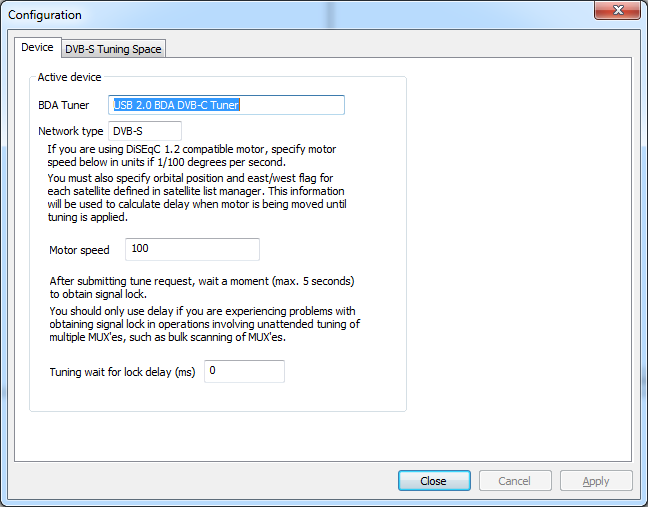
You can verify how your BDA tuner device was detected by application by opening Device / Settings page.
Below is a screenshot showing how a DVB-C  device was detected as DVB-S.


As a workaround a new feature has been added, so that it is now possible to specify network (tuner) type when selecting device during application launch.
The new device selection box is shown below.


You can select between auto detect, DVB-S, DVB-T, DVB-C and ATSC.
It is recommended to first try with auto detect. If then network type is not detected correctly by application, you will need to specify correct network type when launching application.
Note that application can only remember the last network type used. So if you change between different BDA device types, you will have to specify correct network type every time you launch application unless you are using auto detect option.


Sunday, 14 October 2012

DVBStreamExplorer export to Web Services

The next release of DVBStreamExplorer Professional edition will introduce new features for exporting data to Web Services.
  • Service WS export
  • EIT WS export
Service WS export
This feature will export the same data as when exporting to CSV file. The difference being that it will export directly to a server that implements a WS that can be consumed by DVBStreamExplorer.
This could be used by users who are using DVBStreamExplorer to produce data for an on-line DTV service list.
For information on how to develop a WS that can be consumed by DVBStreamExplorer visist http://developer.dvbstreamexplorer.com
The WS export is invoked from export menu.

Endpoint URL of Web Service has to be entered. There is also an ID field. The meaning of this is defined by WS implementation. It is not used internally by DVBStreamExplorer. This could for instance be a unique DTV service list instance, so that multiple DTV service lists could be hosted.

EIT WS export
This feature will export EIT event data to a Web Service. DVBStreamExplorer could then be used to provide event data for an on-line TV guide.
For information on how to develop a WS that can be consumed by DVBStreamExplorer visist http://developer.dvbstreamexplorer.com
This feature is part of the DVB TS Monitor EIT page.


Before starting TS Monitor session, export to WS must be configured. Configuration of EIT WS export can be invoked from Options -> Preferences EIT export tab.


Endpoint URL of Web Service has to be entered. There is also an ID field. The meaning of this is defined by WS implementation. It is not used internally by DVBStreamExplorer.
EIT module will cache events in memory. When a sufficient number of events have been cached they will be exported to Web Service. This will happen either when 'Upload interval (minutes)' has passed or count of events has exceeded 'Event threshold', depending on which of these two events occurs first.
A maximum number of 'Max events per request' events will be sent in one request to Web Service. If number of cached events exceeds this value multiple requests to Web Service will be made.


Thursday, 11 October 2012

Using Google Drive with DVBStreamExploerer exported CSV files

Service information files exported from DVBStreamExplorer in CSV format can be uploaded to Google Drive and converted to Google Spreadsheets. Service information can then be shared easily with other users and you can access information from everywhere including handheld and mobile devices.
You will need either a Google Account or a Google Apps Account.

Below is a DVBStreamExplorer scan of local DVB-T channels (Malta) exported to Google Docs spreadsheet.


Direct link to spreadsheet: https://docs.google.com/spreadsheet/ccc?key=0AlzKD8F--RuTdDJpUWlRYXF3WFpiT3pRdUxRWFgxUUE

Below is a DVBStreamExplorer scan of 'Astra 19.2°E' exported to Google Docs spreadsheet.


Direct link to spreadsheet: https://docs.google.com/spreadsheet/ccc?key=0AlzKD8F--RuTdHhqcVJNWmdTRDVoNVdhM1ZESWphLXc

Once service CSV file has been converted to spreadsheet one could apply Google Apps Script to add special features. This could for instance be extraction of certain information which would normally be difficult to spot when looking at a large spreadsheet. Or it could be used to spot service changes over time. For instance if 'Astra 19.2°E' was scanned one day and then scanned again a week after a script could generate a report of service changes. Such a report could include added and removed services, and list of services where one or more properties changed.

Follow +DVBStreamExplorer to keep up to date with DVBStreamExplorer  related news.

Wednesday, 10 October 2012

NorDig support in DVBStreamExplorer

The next release of DVBStreamExplorer will introduce decoding of NorDig logic_channel_descriptor and content_protection_descriptor private descriptors.
This might be of interest to users in Nordic region (Denmark, Finland, Iceland, Norway, Sweden) and Éire.
For logic_channel_descriptor, both Version 1 (descriptor_tag 0x83) and Version 2 (descriptor_tag 0x87) are decoded.
Below is a screenshot of logic_channel_descriptor (Version 1) decoding in DVB PSI/SI scanning.


And below is screenshot of decoding of same descriptor in DVB Transport Stream Monitor.